
Key terms
Terms that separate a missing event from a delayed report
- Order truth: the Shopify order record, payment state, test status, timestamp, currency, and line items that define what actually happened.
- checkout_completed: Shopify's standard customer event for a completed purchase. Shopify documents that it normally fires once per checkout on the Thank you page or first post-purchase upsell page.
- Pixel owner: the app pixel, Google & YouTube channel, custom pixel, or other approved implementation responsible for translating Shopify's event into GA4.
- purchase: GA4's recommended ecommerce event. Its transaction ID, value, currency, and items determine whether the event is useful for revenue and item reporting.
- DebugView: GA4's real-time debugging surface for events from a device with debug mode enabled; consent and client-side privacy controls can still prevent visibility.
- Processed report: a standard GA4 report or exploration populated after collection and processing, not a live proof that the browser sent the event.
Use this lesson safely
Apply the idea only after the affected path is clear.
- Identify the exact handoff, customer path, field, tag, trigger, report, or access rule before changing tools.
- Test with a low-risk example before touching live leads, payments, course access, reporting, support, or AI responses.
- Keep private client names, screenshots, customer records, payment data, passwords, and API keys out of public forms and messages.
- Document what changed, what was tested, what remains risky, and who owns the next step.
- Start with a Systems Audit when the problem touches several tools or the team cannot explain the current path.
Start with the last evidence you can prove. A Shopify order and a GA4 purchase are separate records created by separate systems. Shopify can complete and store an order even when the browser-side analytics path is blocked, disconnected, misconfigured, sent to another property, or still waiting for report processing. The useful question is not simply “Is GA4 broken?” It is “At which boundary did this specific purchase signal stop?”
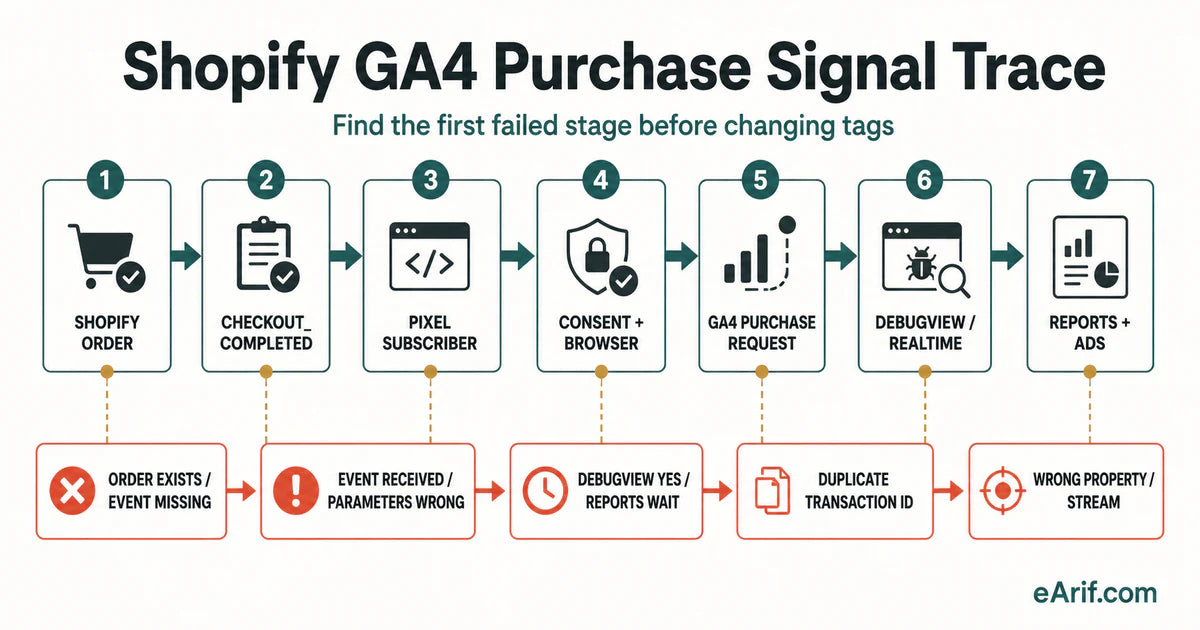
The seven-stage Shopify-to-GA4 purchase path
- Shopify order: confirm the order exists in the intended store and record only privacy-safe facts: test or live status, timestamp, payment state, currency, total, item count, checkout path, and a redacted transaction reference.
- checkout_completed: check Shopify's standard event definition. Shopify says this event normally fires once per checkout, typically on the Thank you page; for post-purchase upsells it can fire on the first upsell offer page instead. If the page that should trigger it fails to load, Shopify says the event is not triggered.
- Pixel subscriber: identify the one implementation expected to receive the Shopify event. Shopify recommends an integrated app pixel when one is available. The Google & YouTube channel can connect a GA4 property. A custom pixel is an advanced fallback, not a requirement for every store.
- Consent and browser: verify whether the test session permits analytics collection and whether browser controls or extensions interfere. Shopify pixels operate with customer privacy settings, and Google notes that DebugView events are not visible when applicable client-side privacy controls or denied Analytics consent prevent collection.
- GA4 purchase request: confirm one sender produces the recommended purchase event for the correct Measurement ID. Inspect the event name and parameters rather than inferring success from a pageview.
- DebugView or Realtime: use the correct property and a fresh test transaction. Google's ecommerce validation guidance recommends DebugView for event-level and item-level parameters.
- Reports and Ads: only after collection is proven should you inspect standard ecommerce reports, explorations, imported conversion actions, or dashboards. Google says ecommerce reports can take up to 24 hours to populate and broader data processing can take 24–48 hours.
Identify the installation owner before touching code
Open Shopify Admin → Settings → Customer events and inventory what can send analytics data. Record the Google & YouTube channel state, app pixels, connected custom pixels, GTM custom pixel, hardcoded theme tags, historical Additional scripts, Google Ads imports, and any server-side or third-party event source. This inventory is evidence, not a recommendation to disconnect anything.
There are three materially different paths. An app or channel pixel is maintained through an integration and should be checked with its configured property and Shopify's pixel tools. A custom pixel subscribes to Shopify customer events inside a sandbox and must use the APIs available there. Shopify explains that custom pixels run in a sandbox and cannot be treated like unrestricted theme JavaScript. A legacy or duplicated path may still exist in theme code or an older integration and can create a second purchase sender.
Do not paste a generic browser or GTM recipe into a Shopify custom pixel without checking the sandbox, event payload, consent behavior, endpoint support, and current official guidance. Do not remove an old sender until a replacement path and rollback plan are documented. Shopify's migration guidance explicitly warns that migration timing can create either missing or duplicate events.
What checkout_completed proves
A received checkout_completed event proves that Shopify published the standard checkout event and that the tested pixel subscribed successfully. It does not prove that the pixel transformed the payload correctly, that the browser sent the GA4 request, that the request used the right Measurement ID, that GA4 classified it as ecommerce, or that a processed report is ready.
An absent event does not automatically prove a broken GA4 tag. The triggering page might not have loaded, the test might have followed a different checkout or post-purchase path, consent might still be pending, the pixel may be disconnected, or the wrong pixel may be under test. Shopify's Pixel Helper instructions distinguish a successful subscription and callback from callback errors, which gives you a more precise boundary than a GA4 report alone.
Collection, classification, and reporting are different checks
Collection asks whether the event reached GA4. Classification asks whether it used the recommended purchase name and expected ecommerce parameters. Reporting asks whether processed interfaces expose that data under the selected property, date, filters, timezone, currency, and attribution context. A purchase can pass one layer and fail the next.
Google's validation guide highlights incorrect event names, syntax, placement, repeated transaction IDs, and using both a Google tag and Google Tag Manager as common failure or duplication causes. The correct repair depends on the evidence: restore the first missing signal, correct the smallest malformed mapping, remove only a proven duplicate sender, or wait for processing when DebugView already contains a healthy event.
Purchase-event symptom matrix: where to check next
Use one fresh, authorized test order and move down the rows only after the previous evidence exists. The table is a diagnostic sequence, not a promise that every store uses the same implementation.
| Observed symptom | Last confirmed evidence | Likely boundary | Next safe check | Do not do yet |
|---|---|---|---|---|
| No Shopify order | Checkout attempt only | Store, checkout, payment, or test-order path | Resolve the order state before analytics diagnosis | Do not change GA4 because there is no completed order to reconcile |
| Order exists; Pixel Helper shows no checkout_completed | Shopify order record | Triggering page, checkout path, consent wait, disconnected pixel, or event subscription | Retest the intended connected pixel and inspect the actual Thank you or first upsell path | Do not add a second GA4 sender |
| checkout_completed appears; callback fails | Shopify event received | Custom pixel code, payload mapping, sandbox, SDK load, CORS, or runtime error | Read the Pixel Helper error and inspect only the failing callback or request | Do not rewrite the checkout or theme |
| Pixel callback succeeds; no GA4 request | Subscriber execution | Sender initialization, consent state, Measurement ID, endpoint, browser block, or mapping branch | Inspect the network request and the configured destination in the same test session | Do not wait for reports when collection is unproven |
| GA4 request exists; no event in DebugView | Outbound analytics request | Wrong property, debug mode, consent/privacy behavior, request rejection, or device selection | Confirm Measurement ID and property, enable debug mode for the test device, and compare Realtime | Do not assume the report is merely delayed |
| DebugView shows purchase; ecommerce fields are missing | GA4 collection | Event classification or parameter mapping | Inspect transaction_id, value, currency, and the items array against the redacted order facts | Do not import the event into Ads as decision-ready |
| DebugView is healthy; standard report is empty | Correct property received the event | Processing, date range, timezone, report filters, thresholds, or report surface | Record the test time and recheck a closed period after the documented processing window | Do not send another purchase with the same transaction ID just to force the report |
| Two purchase events for one order | Duplicate event timestamps or requests | Multiple senders, duplicated tag execution, or replay behavior | Map each sender and request source; preserve evidence before removing one | Do not disconnect integrations by guess |
| Purchase appears in GA4 but not the expected Ads or dashboard view | GA4 processed event | Import configuration, key-event choice, connector freshness, property mismatch, filters, or attribution scope | Trace the GA4-to-destination handoff separately | Do not rebuild the Shopify event that is already healthy |
28-point browser-local Shopify GA4 purchase trace
Check only what you can prove. The selections stay in this browser; they are not submitted to eArif.com. Use redacted references and never place customer names, addresses, payment details, credentials, or private order screenshots in the checklist.
A controlled test-order protocol
- Freeze the map: record the intended GA4 property and every possible purchase sender before changing the store.
- Choose the test path: use an authorized Shopify test-order method appropriate to the store. Do not create fake customer records or expose private payment information.
- Use a fresh reference: record a redacted order or transaction reference, timestamp, browser, region, consent choice, currency, and item count.
- Watch Shopify first: confirm the order and then observe the intended connected pixel with Shopify Pixel Helper or the integration's supported test method.
- Watch transport second: inspect whether one expected GA4 request leaves the browser for the confirmed Measurement ID.
- Watch GA4 third: inspect DebugView or Realtime and open the event to verify event-level and item-level parameters.
- Wait deliberately: if collection is healthy, record the time and inspect the relevant standard report after processing instead of repeating the same transaction.
- Retest after one change: use a new authorized transaction, compare the same seven stages, and preserve before/after evidence.
Build a privacy-safe evidence packet
A useful handoff does not need customer names, email addresses, street addresses, card information, login credentials, API keys, or full order screenshots. Capture the store domain, redacted transaction reference, order state, timestamp and timezone, currency and total, item count, checkout path, pixel owner, consent state, Measurement ID suffix if needed, event name, parameter presence, DebugView result, processed-report result, first failed stage, and one redacted error message.
Keep the distinction between not collected, collected but malformed, collected but delayed, duplicated, and sent to another destination. Those states require different owners and different fixes.
Choose diagnosis, setup, or reporting work
- Use this guide when one Shopify purchase is missing, delayed, malformed, or duplicated and you need to identify the first failed stage.
- Use the Shopify GA4, pixel, and tracking audit when several apps, pixels, GTM tags, consent settings, Ads imports, or dashboards may conflict.
- Use Shopify GA4 setup when the intended implementation is already clear and needs configuration or cleanup.
- Use the GA4, CRM, and Looker Studio discrepancy guide when GA4 collection is healthy but business reports still disagree.
- Use Systems Audit when checkout, CRM, customer access, ads, reporting, and team ownership all affect the same live decision.
Limits and privacy boundary
This guide explains a diagnostic method; it does not determine which privacy laws apply to a store and is not legal advice. Consent requirements vary by business, customer location, data use, and implementation. Shopify states that merchants are responsible for privacy compliance and should seek qualified legal advice for their circumstances. A technically visible event is not permission to collect or use data beyond the site's lawful and documented policy.
Do not treat exact agreement between Shopify, GA4, Google Ads, and dashboards as the only definition of health. These systems can use different processing times, attribution rules, scopes, filters, and lifecycle definitions. The immediate goal is one explainable, testable purchase signal and a documented owner for every later handoff.
Article FAQ
Shopify GA4 purchase-event questions
Why can Shopify show an order when GA4 shows no purchase?
Shopify records the commerce transaction, while GA4 depends on a separate collection path. The completion page or event may not load, the intended pixel may be disconnected or fail, consent or browser controls may prevent collection, the request may target another Measurement ID, the event may be malformed, or the processed report may not be ready. Confirm the seven stages in order.
Can Shopify checkout_completed fail to fire after an order?
Yes. Shopify documents that checkout_completed normally fires once on the Thank you page or first post-purchase upsell page, and that it does not fire if the page where it should trigger fails to load. Test the actual checkout path before blaming the GA4 mapping.
How long should I wait for a Shopify purchase in GA4?
Use DebugView or Realtime first to prove collection. Google says ecommerce reports and explorations can take up to 24 hours to populate, and its data-freshness documentation says processing can take 24–48 hours. If DebugView is empty, waiting alone is not a diagnosis.
What should I do after I learn what is broken?
Choose the smallest safe next step. Test one low-risk handoff yourself when the path is clear, use the related service when the failure is specific, start with the Systems Audit when several tools or live customers are involved, and keep learning when the evidence is still vague.
Sources and context
Current Shopify and Google references used for this guide
Related eArif context
Official references
- Shopify: pixels and customer events
- Shopify: app pixels and Pixel Helper
- Shopify: manage custom pixels and privacy settings
- Shopify: test custom pixels
- Shopify: migrate older pixel implementations
- Shopify: set up Google Analytics 4
- Shopify: connect Google & YouTube and GA4
- Shopify: customer privacy settings and Google Consent Mode
- Shopify Developers: web pixels, consent, and sandbox environments
- Shopify Web Pixels API: checkout_completed
- Google Analytics: set up ecommerce events
- Google Analytics: validate ecommerce collection
- Google Analytics: monitor events in DebugView
- Google Analytics: data freshness
Trace the first failed purchase signal before changing the stack.
If several Shopify pixels, tags, consent rules, GA4 destinations, Ads imports, or dashboards may conflict, use the tracking audit to document the sender map and smallest safe next step.
Review the tracking stack